Resolve Vault Documentation
Everything you need to know about using Resolve Vault — from your first project backup to restoring a PostgreSQL database for your whole team.
What is Resolve Vault?
Resolve Vault is a desktop app for macOS, Windows and Linux that runs quietly in the background while you work in DaVinci Resolve. It automatically backs up your projects and databases — locally on your computer, and to Google Drive and Dropbox — without any manual steps from you.
It solves a real problem: DaVinci Resolve does not have built-in automatic backups of your databases or cloud sync. If your drive fails, a project gets corrupted, or someone on your team accidentally breaks a shared database, your work can be gone permanently. Resolve Vault makes sure that never happens.
What it backs up
.drp file on a timer and whenever you open another project.
Local Disk databasesA whole Local Disk database — every project, bin, grade and timeline — as one compressed archive.
PostgreSQL databasesYour shared Network database, backed up and encrypted on a schedule. One backup covers the whole team.
Every backup can be uploaded automatically to Google Drive and Dropbox the moment it's created.
Built for studios and collaborative teams
DaVinci Resolve's collaborative mode — where multiple users work at the same time on a shared PostgreSQL Network database — is powerful, but it introduces a new risk: a single corrupted database affects everyone on the team. Resolve Vault addresses this directly.
By scheduling automatic database backups, your entire team's work is captured in a single archive. If anything goes wrong — a bad Resolve update, an accidental deletion, a server crash — you can restore the full database as a new copy, for everyone, in minutes.
Combined with cloud sync, these database archives are also stored off-site automatically, giving facilities a disaster-recovery layer that previously required custom IT infrastructure.
- Freelancers — set it and forget it. Your projects are backed up automatically while you work.
- Studios with shared databases — back up the whole PostgreSQL database on a schedule, so every colorist, editor and assistant is protected at the database level.
- Anyone who has ever lost work — a corrupted project, a failed drive or a deleted timeline is recoverable.
Requirements
- macOS 12 or later on Apple Silicon, Windows 10/11 (64-bit), or Linux (Rocky Linux / RHEL / AlmaLinux / CentOS Stream 8+)
- DaVinci Resolve Studio (the free version does not expose the scripting API that Resolve Vault uses)
- External scripting enabled in Resolve: Preferences → System → General → Enable External Scripting using Network
Dashboard
The Dashboard is the first page you see. It shows, in one place, whether Resolve Vault can reach DaVinci Resolve, which cloud accounts are connected, and when the last backup ran.
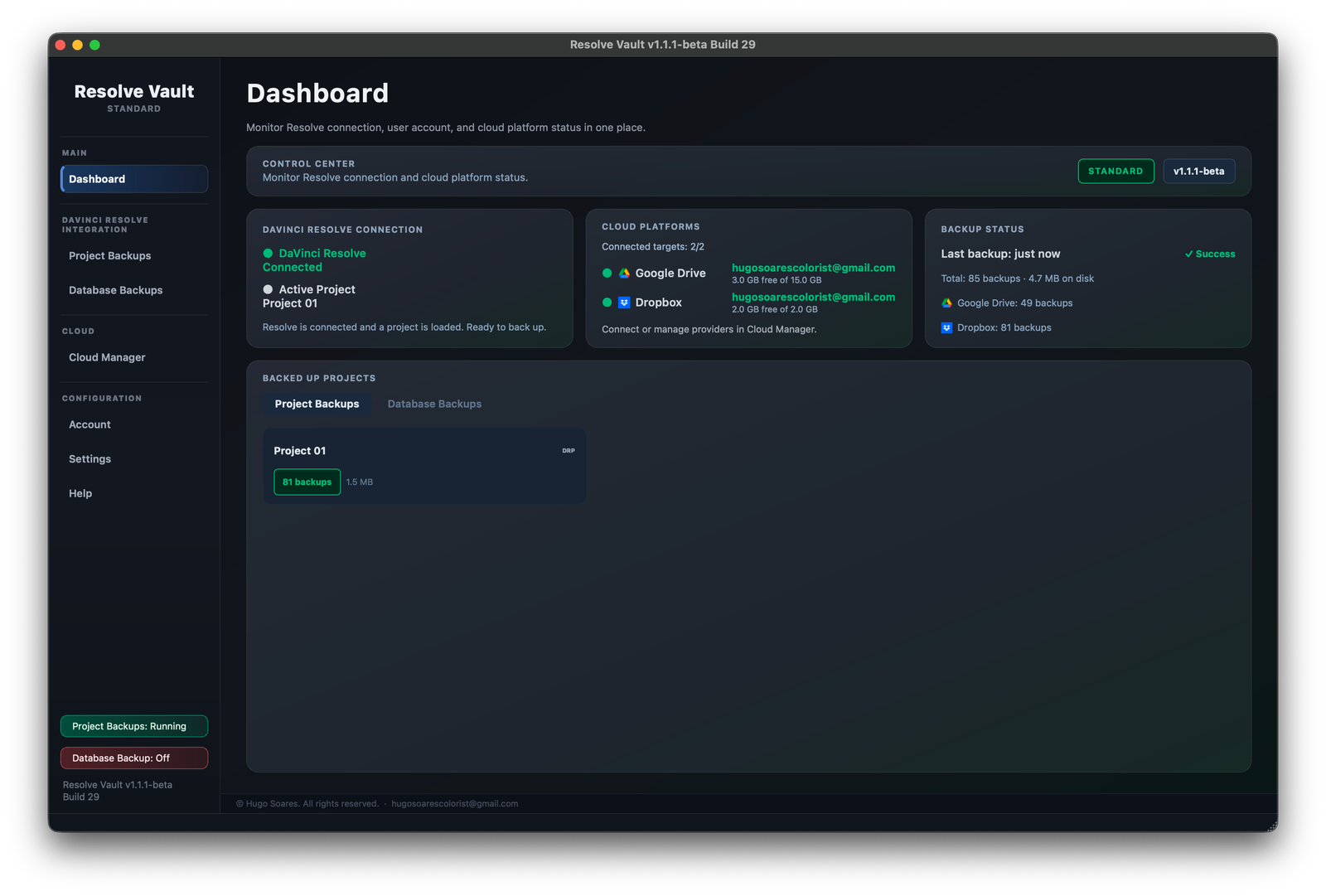
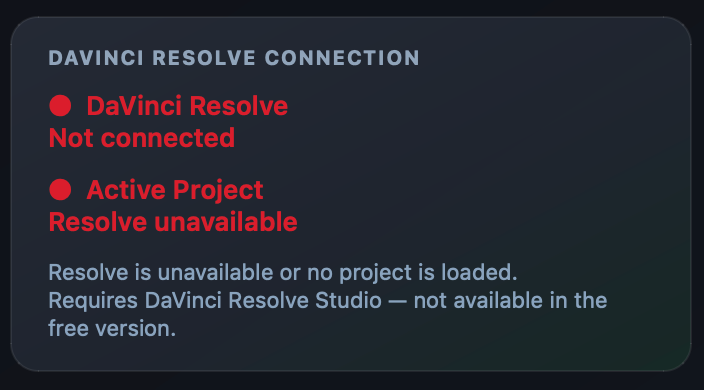
- DaVinci Resolve Connection — green when Resolve is open and a project is loaded. Red means Resolve isn't reachable (see Troubleshooting).
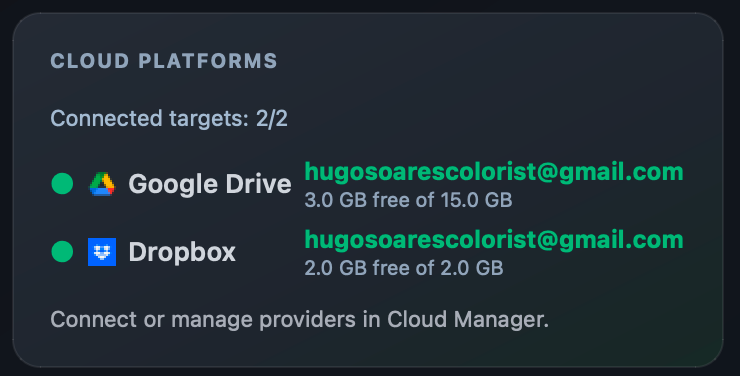
- Cloud Platforms — each connected account with its free space.
- Backup Status — when the last backup ran, and how many backups are on disk, in Google Drive and in Dropbox.
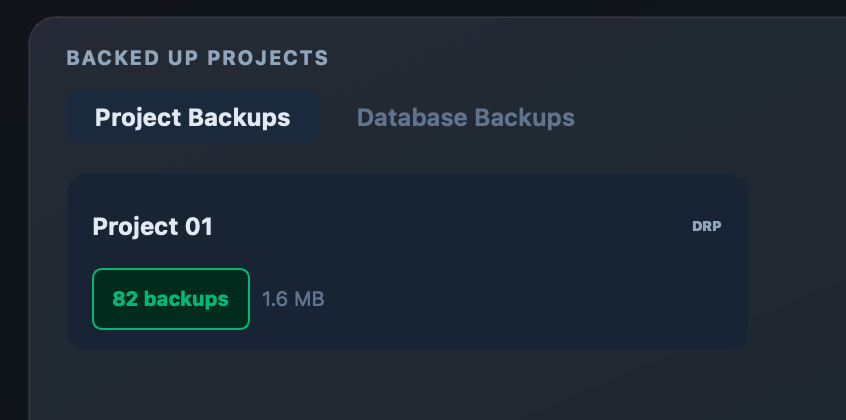
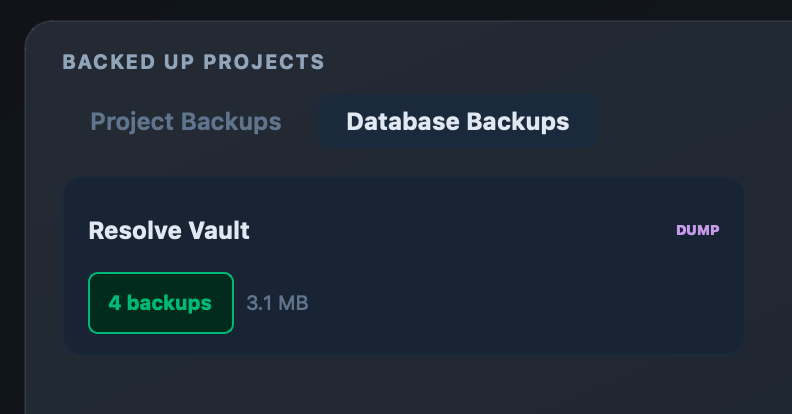
- Backed Up Projects — one card per project or database. Switch between the Project Backups and Database Backups tabs, and click a card to see every backup of it.
Menu bar and status badges
Resolve Vault lives in your menu bar (macOS) or system tray (Windows and Linux). The icon colour tells you the backup state at a glance, and the detailed view adds the project name and a countdown to the next backup.
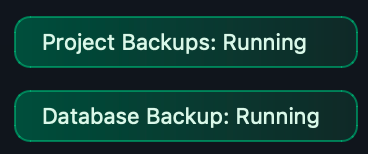
 Green — backups are running. Shows the project and the time until the next backup.
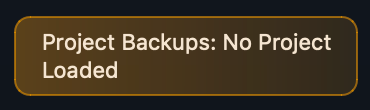
 Yellow — Resolve is open but no project is loaded.
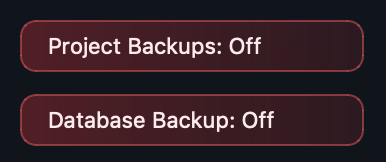
 Red — Resolve isn't running or can't be reached.
 Minimal — icon only. Turn this on in Settings if you prefer a compact menu bar.
At the bottom of the app's sidebar, two badges show whether project and database backups are running:


Project Backups
How it works
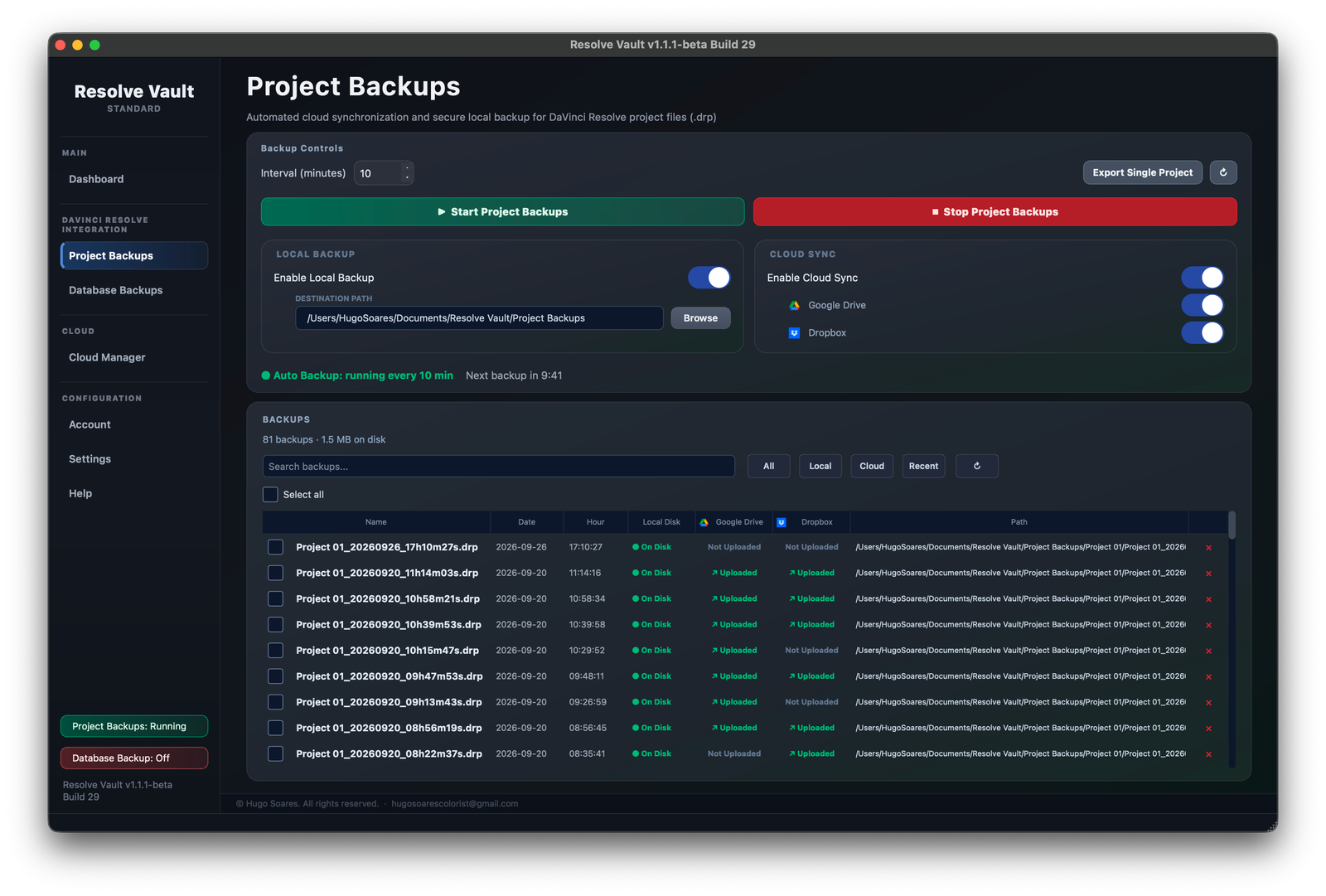
Click Start Project Backups on the Project Backups page. Resolve Vault then exports the project you have open in DaVinci Resolve at a regular interval. Each export is a .drp file — the same format Resolve produces when you export a project manually.
When you open a different project, Resolve Vault backs it up right away instead of waiting for the next interval, so a project you only open briefly is still captured.
Resolve just needs to be open with a project loaded. The export happens silently without interrupting your work. To export once without starting the timer, click Export Single Project.
Backup interval
Set how often Resolve Vault exports a backup in Interval (minutes) — anywhere from 1 minute to 1440 minutes (once a day). The default is every 10 minutes.
After you change the number, an Apply button appears next to it. Click it and the new interval takes effect immediately, even while backups are running. The status line shows the current interval and counts down to the next backup:

Backup folder
Under Local Backup, turn on Enable Local Backup and click Browse to choose where your .drp files are saved. Backups go into a Project Backups folder inside it, with one subfolder per project.
If you turn local backup off and cloud sync on, each backup is uploaded and the local file is removed afterwards to save disk space.
Backup history
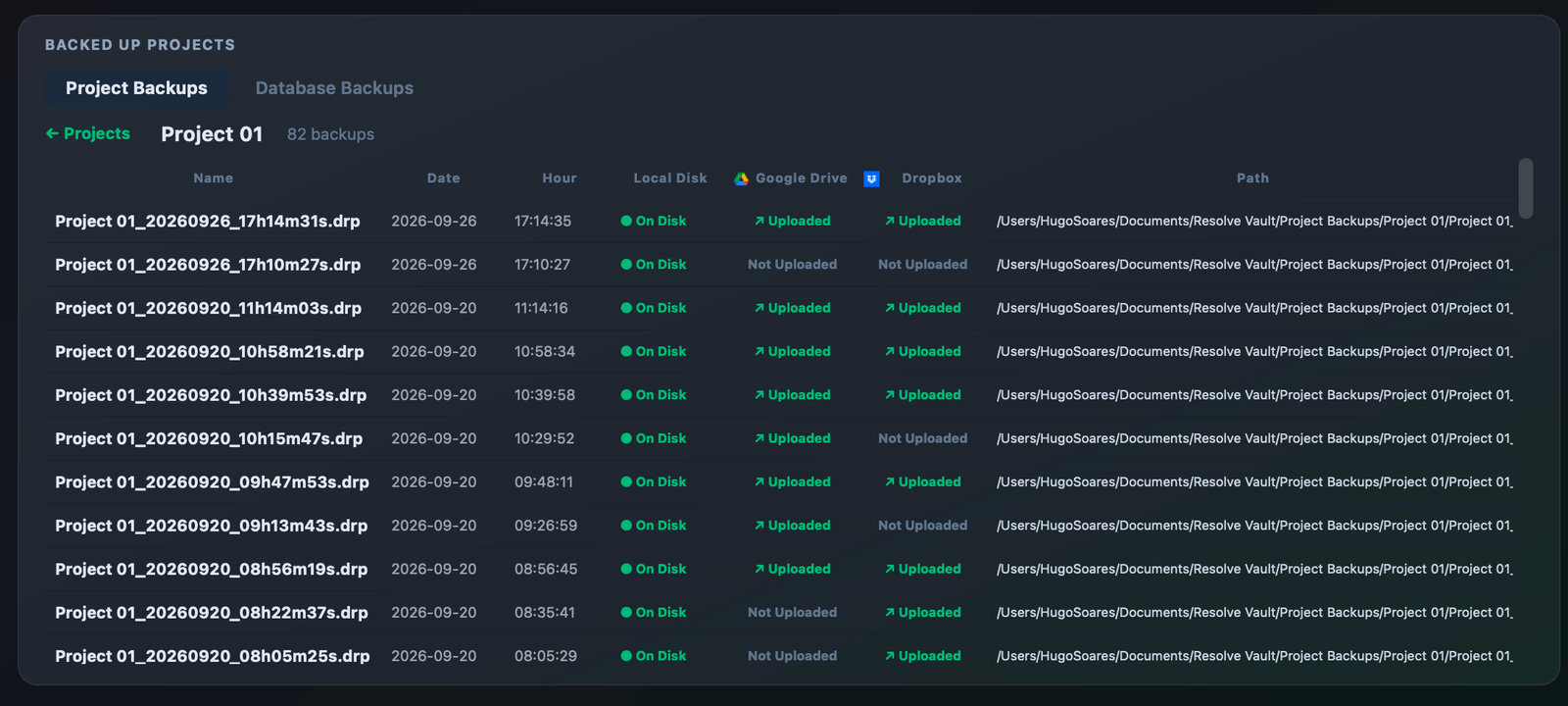
The Backups list shows every backup with its date and time, and whether it's on disk, in Google Drive and in Dropbox. Use the search box and the All, Local, Cloud and Recent filters to find one quickly. Click an Uploaded tag to open that file in Google Drive or Dropbox.
From the Dashboard, click a project card to see all of its backups in one place:
Mirror folder structure
When this option is on (the default), Resolve Vault recreates the folder hierarchy from your Resolve Project Manager inside your backup destination. For example, a project in 2025 / DAILY / MyProject in Resolve is saved to Project Backups / 2025 / DAILY / MyProject.
When it's off, each project gets its own folder directly inside Project Backups. You'll find this option in Settings → Project Switching.
Retention — keep last N backups
To stop your backup folder from growing forever, turn on Settings → Backup Retention → Limit number of backups kept and choose how many to keep. After each backup, the oldest ones beyond that number are deleted automatically. Retention is off by default — all backups are kept.
Database Backups
Besides individual projects, Resolve Vault can back up an entire DaVinci Resolve database — every project, bin, grade and timeline in it, not just the one you have open. Both kinds of Resolve database are supported:
- Local Disk — the default Resolve database stored on your computer.
- Network (PostgreSQL) — the shared database used in collaborative studio setups.
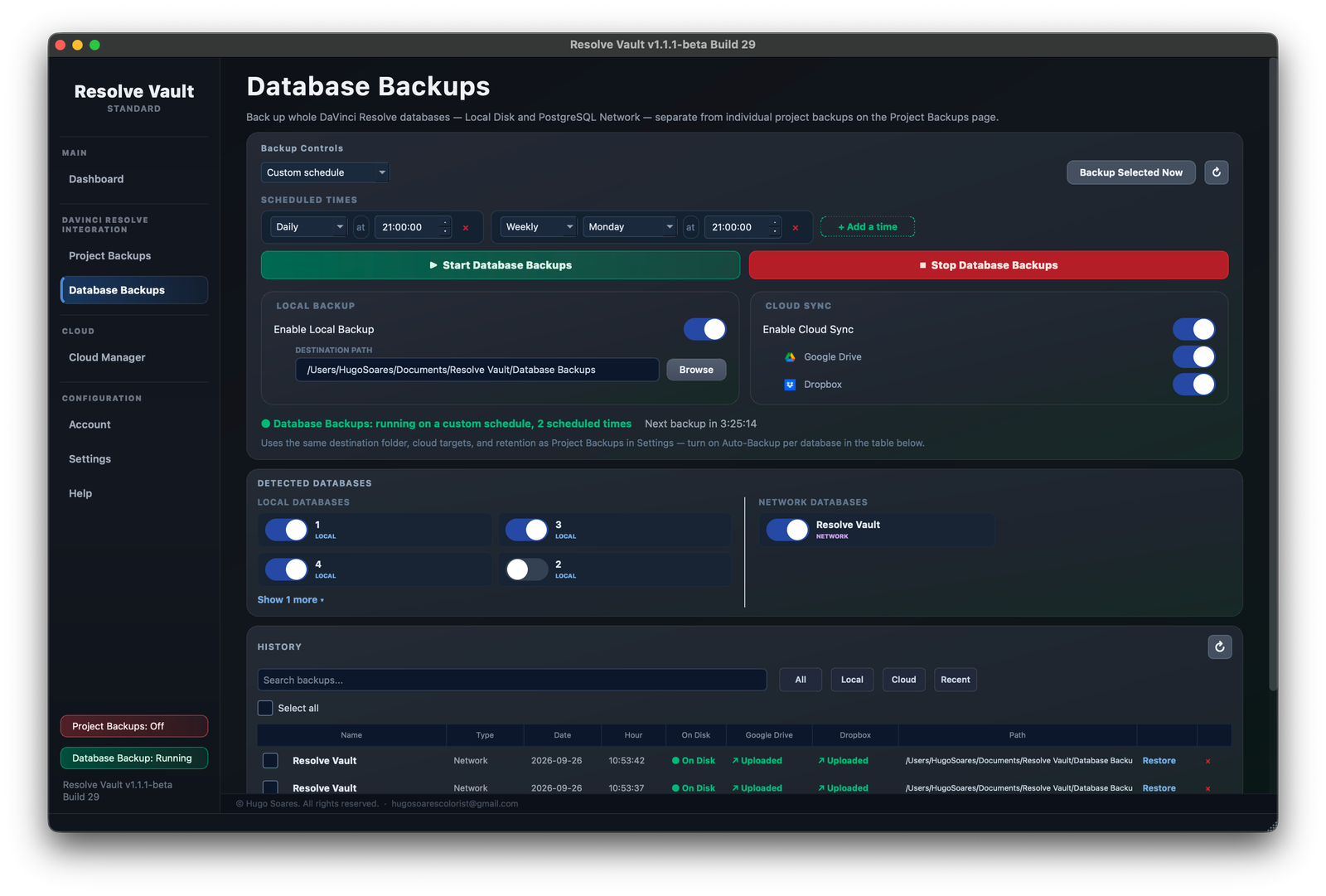
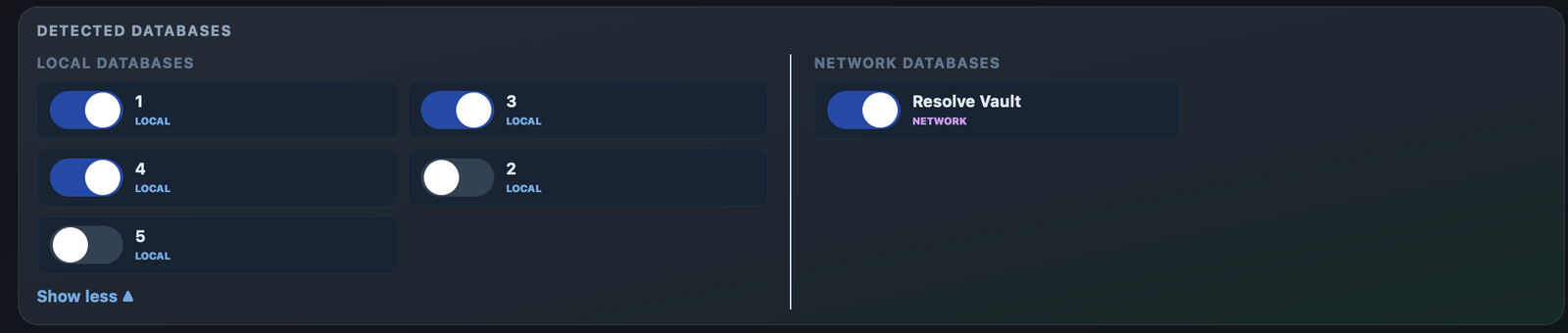
Resolve Vault lists the databases it finds under Detected Databases. Toggle on each one you want backed up automatically:
Then click Start Database Backups. To back up the selected databases once, right now, click Backup Selected Now. Database backups use the same retention settings as project backups.
Scheduling database backups
Choose how database backups are scheduled in the drop-down under Backup Controls:
- Every N minutes — a fixed interval, from 1 to 1440 minutes. The default is 60.
- Custom schedule — back up at set times. Click + Add a time and choose Daily, Weekly, Monthly or Yearly, plus the day and time. Add as many times as you need — for example every night at 21:00 and every Monday.
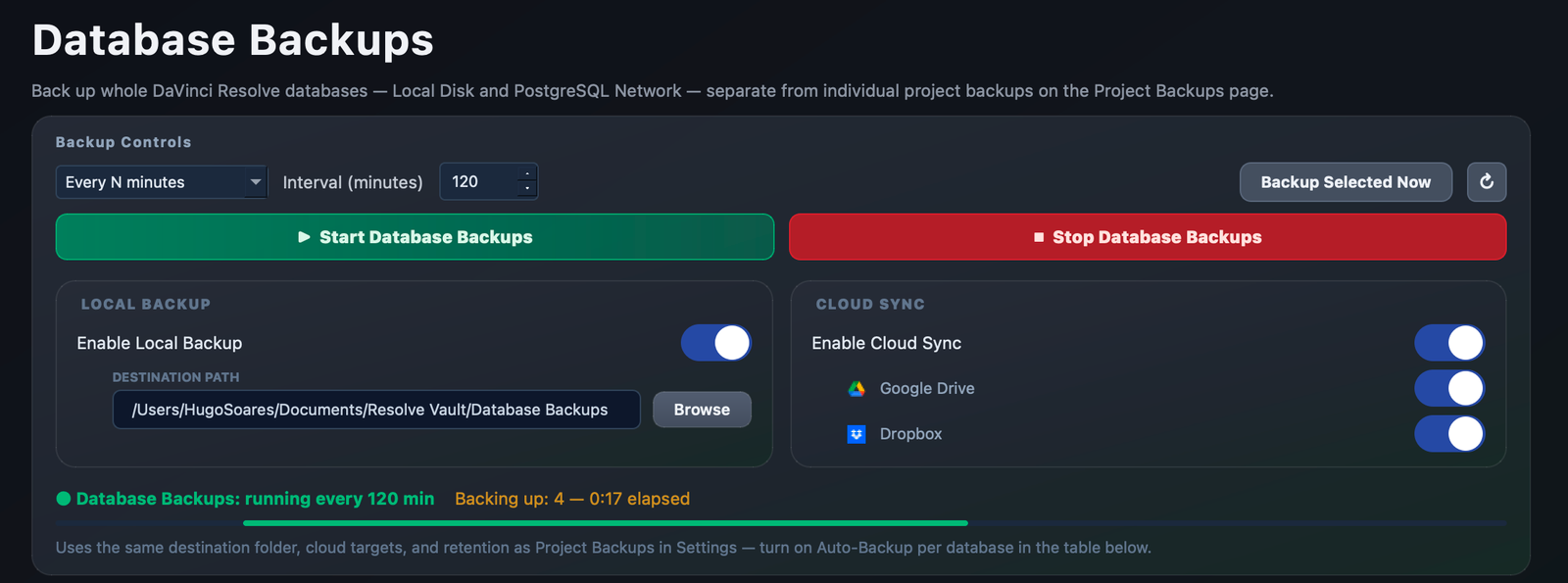
While a backup runs, the status line shows which database is being backed up and for how long:

Local Disk databases
Local Disk databases are folders on your computer. Resolve Vault compresses each one into a single .diskdb archive that contains everything needed to restore the full database.
Backups are saved in your database backup folder, with one subfolder per database.
PostgreSQL (Network) databases
Network databases run on a PostgreSQL server — on your own machine or a shared studio server. Resolve Vault connects to the server, backs up the whole database with PostgreSQL's own backup tools, encrypts it, and saves it as an .rvdb file.
Because the whole database is captured in one file, a single scheduled backup protects the work of everyone who uses it.
Database passwords
Resolve Vault uses the connection details Resolve already has saved for the database. If there's no saved password, or the saved one is rejected (for example after the server password was changed), Resolve Vault asks for it:
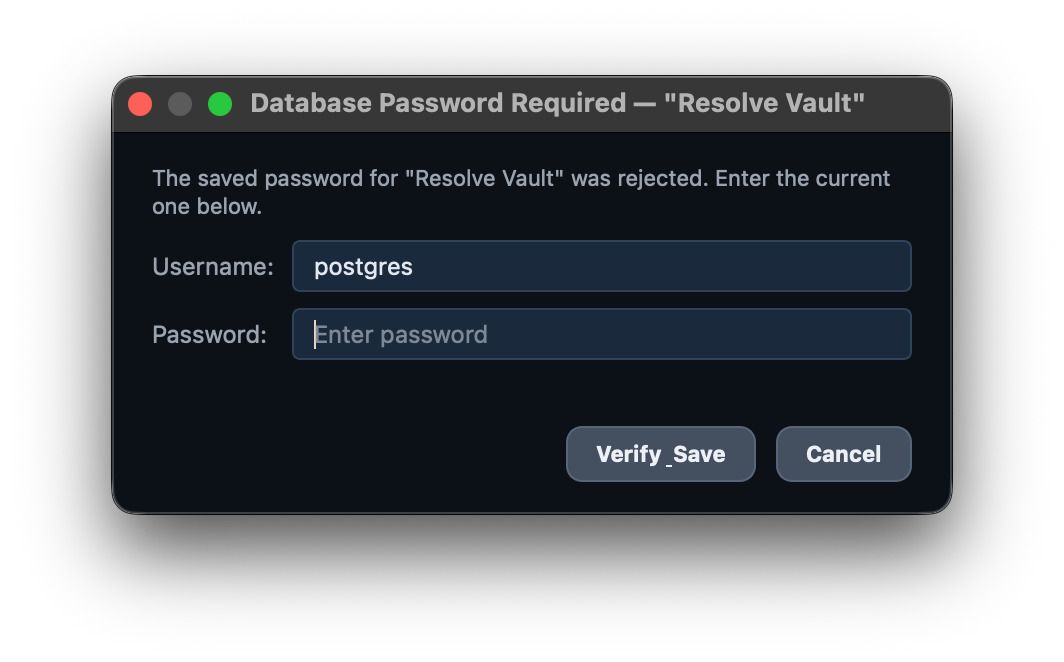
Enter the current password and click Verify & Save. Resolve Vault checks it against the server before saving, and uses it for future backups.
Database history
The History list shows every database backup with its type (Local or Network), date and time, and whether it's on disk, in Google Drive and in Dropbox. Each row has a Restore button.
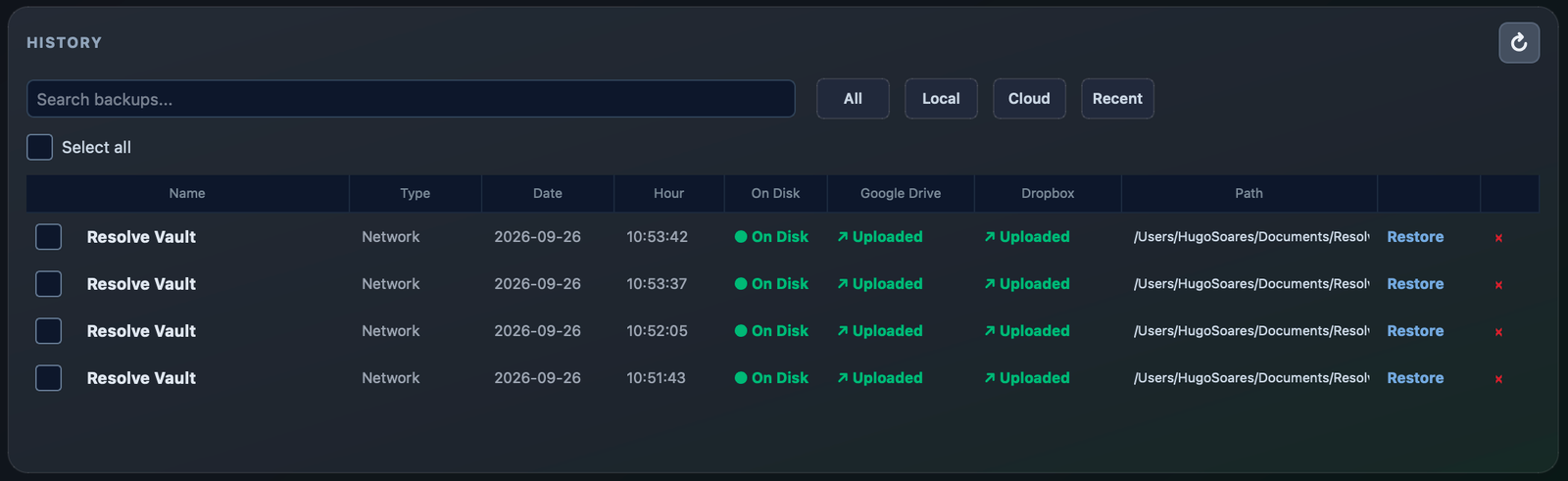
Restoring a database backup
Click Restore on any entry in the database history to open the restore dialog.
Restoring a PostgreSQL database
The dialog shows the backup file and the name of the new database it will create. Enter the server details, then click Restore as New Database. DaVinci Resolve does not need to be open — only the PostgreSQL server must be running.
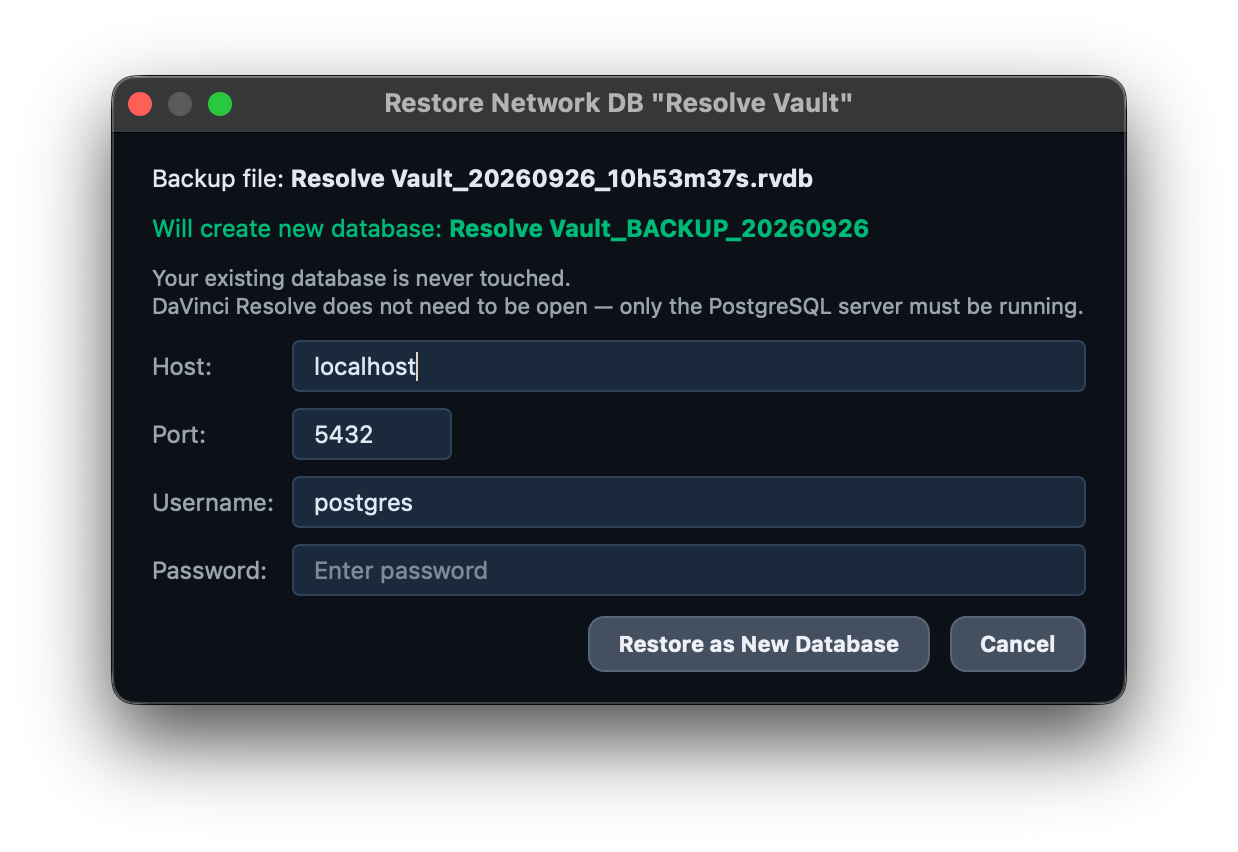
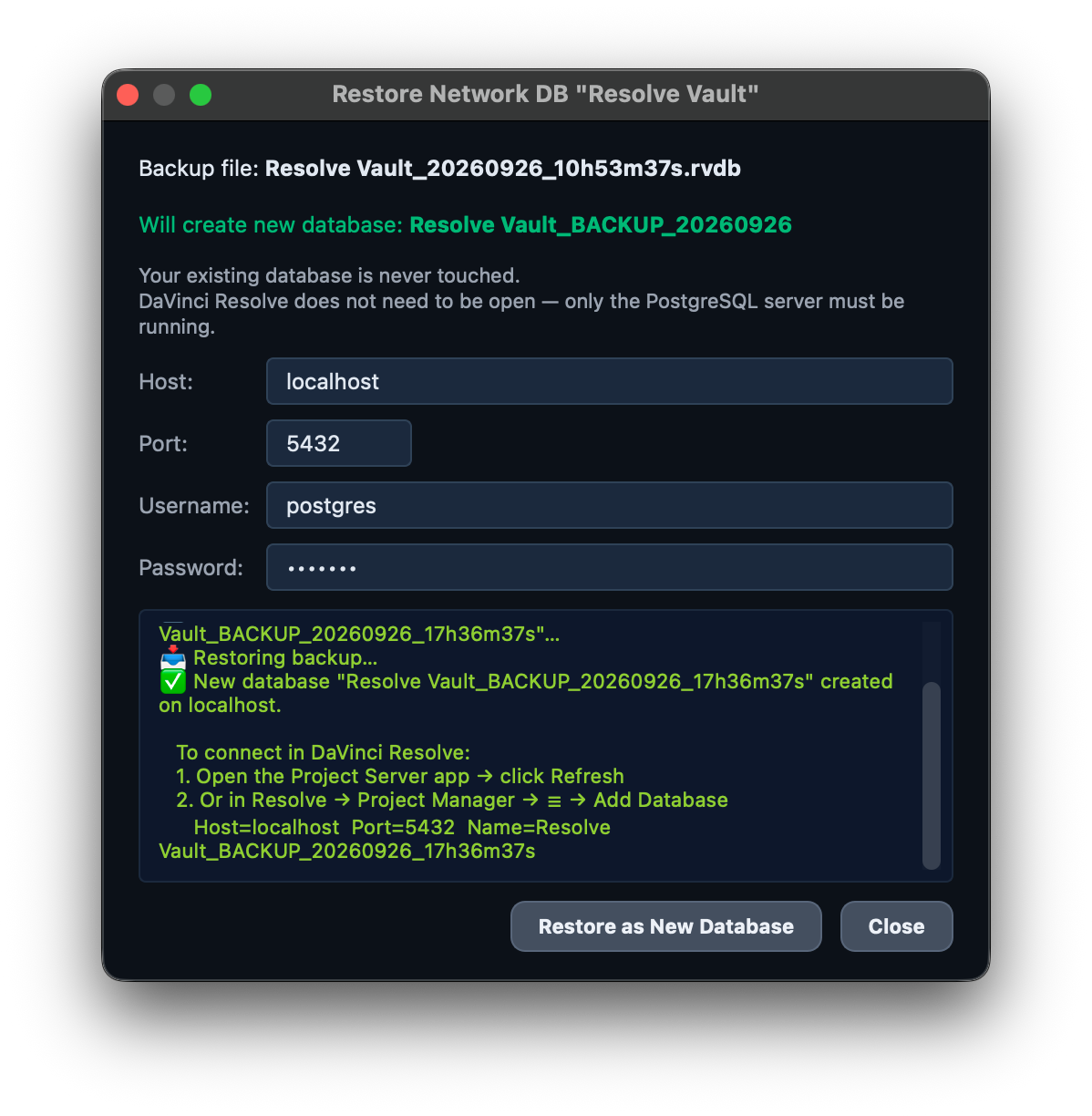
To use the restored database:
- Open the Project Server app and click Refresh, or in Resolve go to Project Manager → ☰ → Add Database.
- Enter the same server details and the new database name shown in the dialog.
Restoring a Local Disk database
- Resolve Vault restores the backup into a new folder on your computer.
- Open DaVinci Resolve and go to Project Manager.
- Click the menu icon (☰) and choose Add Database.
- Select the restored folder to connect it as a new database.
Cloud Storage
Resolve Vault can upload every project and database backup to Google Drive and Dropbox right after it's created, giving you an off-site copy that doesn't depend on your local drives. Cloud sync is optional — you can keep backups local only.
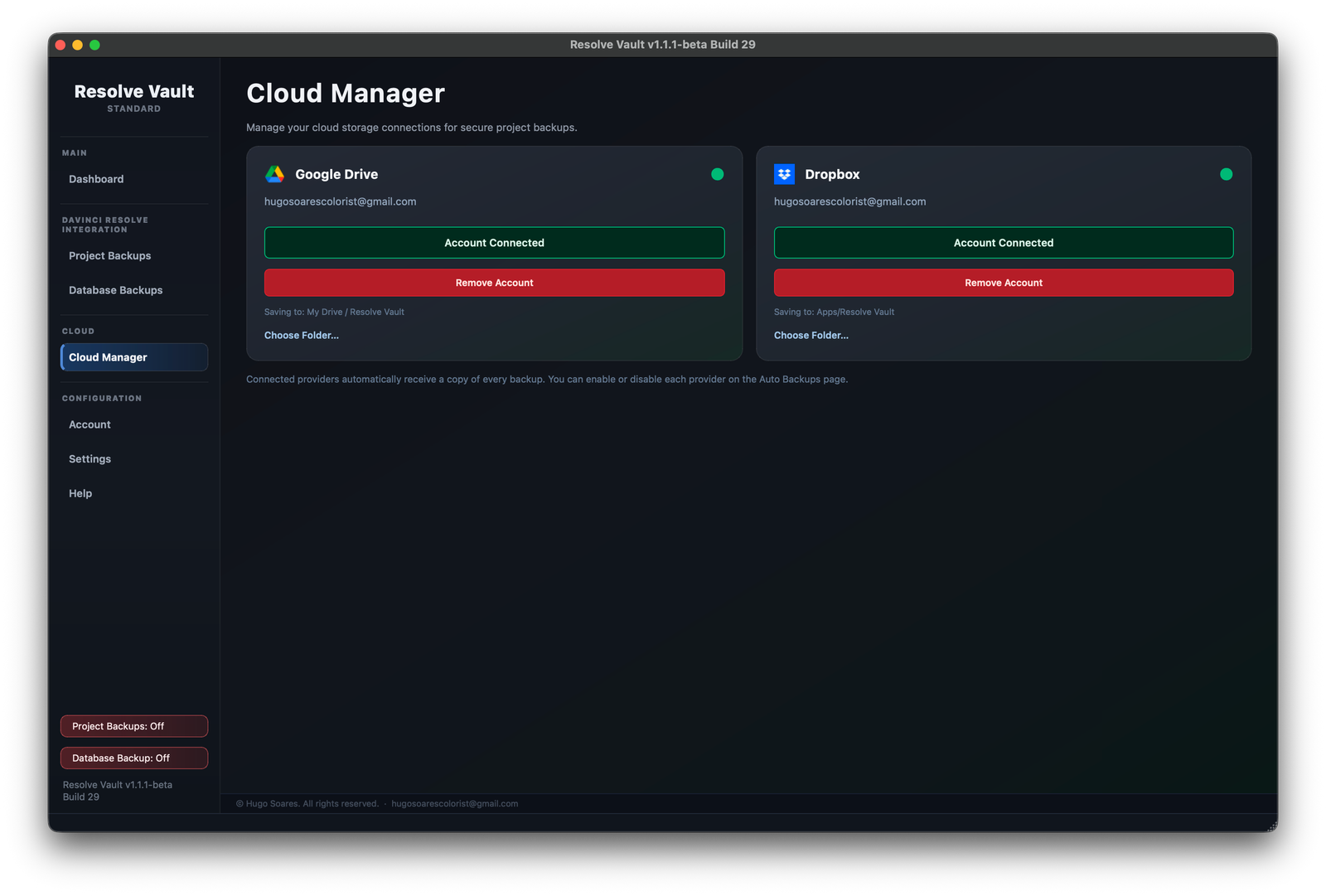
Connect your accounts on the Cloud Manager page:
Google Drive
Connecting Google Drive lets Resolve Vault upload files to your Drive. By default, backups go to My Drive / Resolve Vault, with one subfolder per project.
- Go to Cloud Manager in Resolve Vault.
- Click Connect Google Drive.
- Your browser opens Google's sign-in page. Sign in and approve all requested permissions.
- Return to Resolve Vault — the card shows Account Connected.
To save somewhere else in your Drive, click Choose Folder… after connecting.
Dropbox
Connecting Dropbox lets Resolve Vault upload files to its own app folder in your Dropbox. By default, backups go to Apps / Resolve Vault, with one subfolder per project.
- Go to Cloud Manager in Resolve Vault.
- Click Connect Dropbox.
- Your browser opens Dropbox's authorisation page. Sign in and approve access.
- Return to Resolve Vault — the card shows Account Connected.
To use a different folder, click Choose Folder… after connecting.
Turning providers on or off
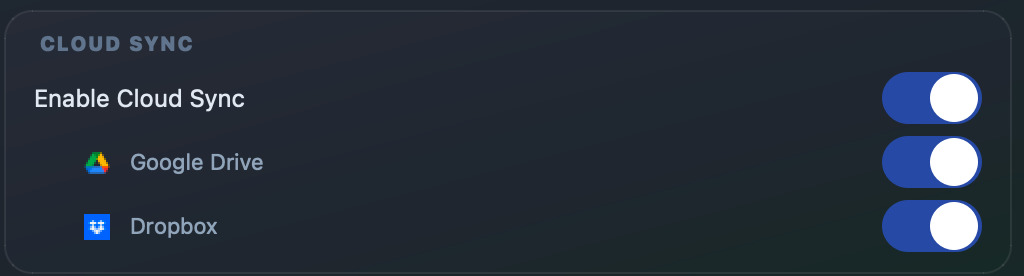
The Project Backups and Database Backups pages each have a Cloud Sync panel. Enable Cloud Sync is the master switch; below it, choose Google Drive, Dropbox, or both.
What happens if a cloud upload fails
If a cloud upload fails for any reason — no internet connection, expired sign-in, storage full — Resolve Vault keeps the backup file on disk, even if local backup is turned off. You will not lose the backup.
For single exports, Resolve Vault tells you which provider failed and asks whether to keep the local copy (the default). For automatic backups running in the background, the failure is logged and the local file is kept.
Settings Reference
The options on the Resolve Vault Settings page.
Export Settings
| Setting | What it does |
|---|---|
| Export path | The main folder for your backups. Project backups go into a Project Backups folder inside it. |
| Auto backup interval (min) | How often project backups run, from 1 to 1440 minutes. The same value as on the Project Backups page. Default: 10. |
| Include stills and LUTs in project backups | Adds your project's stills and LUTs to each .drp export. On by default. |
Startup
| Setting | What it does |
|---|---|
| Launch at Login | Opens Resolve Vault automatically when you log in to your computer. |
| Auto Backups at Startup — Project Backups | Starts project backups as soon as Resolve Vault opens, without pressing Start. On by default. |
| Auto Backups at Startup — Database Backups | Starts database backups as soon as Resolve Vault opens. Off by default. |
Updates
| Setting | What it does |
|---|---|
| Automatically check for updates on launch | Checks for a new version each time the app opens. You can also use File → Check for Updates… at any time. |
Menu Bar
| Setting | What it does |
|---|---|
| Minimal menu bar | Shows only the icon — no project name or countdown. |
| Colorless menu bar | Uses a white icon instead of green, yellow or red, faded when backups aren't running. |
Project Switching
| Setting | What it does |
|---|---|
| Ask to update backup folder when the active project switches | Asks whether to change the backup folder when you open another project. Switching projects always triggers a backup, whether this is on or off. |
| Mirror Resolve folder structure in backup destination | Recreates your Resolve Project Manager folders inside the backup folder. On by default. See Mirror folder structure. |
Backup Retention
| Setting | What it does |
|---|---|
| Limit number of backups kept | When on, the oldest backups and their files are deleted automatically after each backup. Off by default — all backups are kept. |
| Keep last N backups | How many of the most recent backups to keep. |
Troubleshooting
DaVinci Resolve is not detected
Resolve Vault connects to DaVinci Resolve through its scripting API. If Resolve shows as "Not connected" on the Dashboard or in the menu bar, check the following:
- Make sure DaVinci Resolve is open and a project is loaded.
- Go to DaVinci Resolve → Preferences → System → General and confirm that Enable External Scripting using Network is checked.
- Restart DaVinci Resolve after enabling the setting — it does not take effect until you restart.
- Make sure you are using DaVinci Resolve Studio. The free version does not support external scripting.
Google Drive upload fails with a permission error
If you see a "Google Drive needs reconnecting" error, your stored connection token is missing the required permissions. This can happen if you connected Google Drive in an older version of the app before full Drive access was requested.
To fix it:
- Go to Cloud Manager in Resolve Vault.
- Click Remove Account under Google Drive.
- Click Connect Google Drive and sign in again.
- On the Google consent screen, make sure to approve all requested permissions.
A backup is not appearing in the history
If a backup ran but is not showing in the history list, the most likely cause is that the export file was empty or could not be written to disk — for example, the destination folder was full or had permission issues.
- Check that your backup folder exists and that Resolve Vault has write permission to it.
- Check that there is enough free disk space at the destination.
- Look at the app log (Help page) for any export error messages.
If the file was exported but is not in history, try clicking the refresh button (↻) on the Project Backups or Database Backups page — Resolve Vault will scan the backup folder and add any files it finds that are not yet recorded.